
Gazelle Calibration
Overview
Account creation
To create an account for the calibration, you need to have access to the VM. Once here, just type the following command :
sudo htpasswd /home/gazelle/gazelle-calibration/html/htpasswd.users <username>
You will be ask to create your password.
Calibration page
To access the calibration, go to the admin.php page. Once here, click on the Gazelle Calibration link in the Utilities section and sign-in. This page is rather self-explanatory.
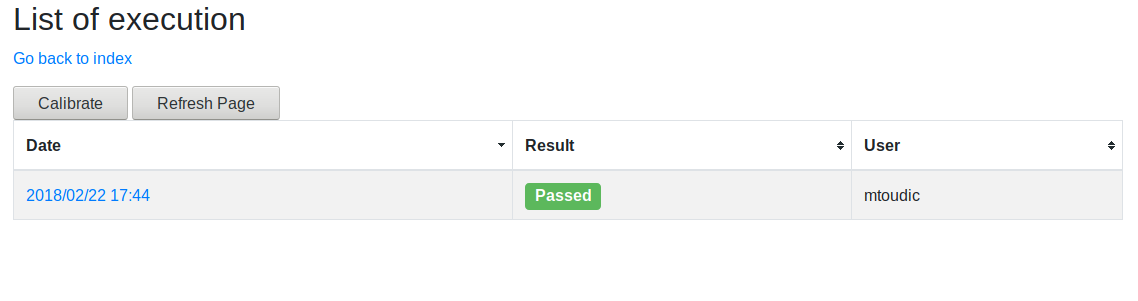
By clicking on the date, you can view the details of an execution.
Admin page
Go back to the admin.php page.
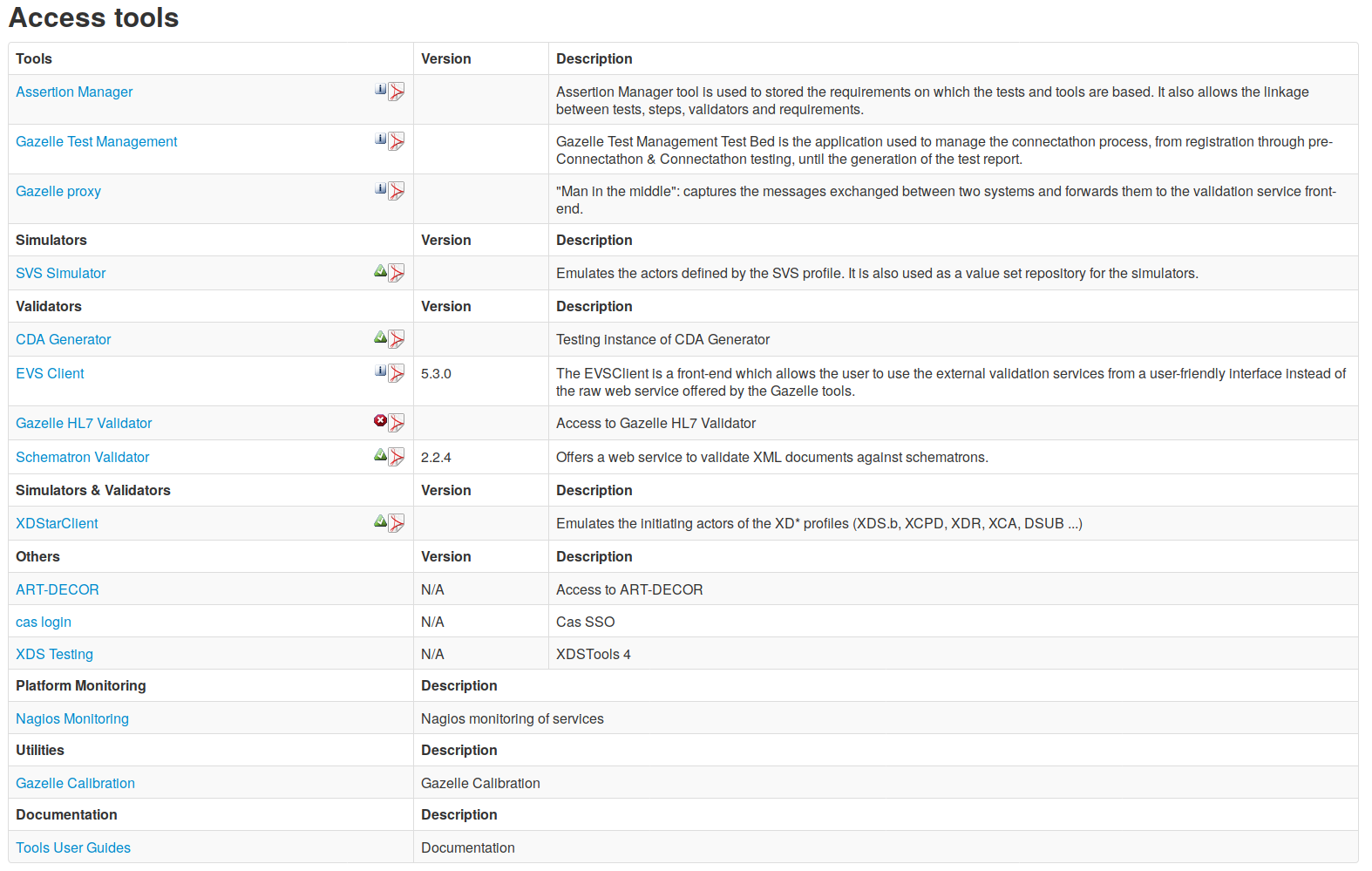
Beside each tool there is an icon indicating the calibration result :
- The green one (Calibration passed) : All the tests for this tool were successful
- The red one (Calibration failed) : At least one test was failed
- The white one (Calibration skipped) : The tool is not installed or there is no calibration for this tool (yet).
You can click on the icon to go to the right section of the last calibration report.